Sunday, 17 June 2018

HOW TO TAKE MEASUREMENTS

HOW TO TAKE MEASUREMENTS


Step 1 Open the Measure app. The app will now instruct you to move your iPhone/iPad around to check the spatial arrangement.


Move your device slowly to ensure the camera glances over each object in your immediate surroundings.


Step 2 Tap the + icon to add and place a point over the object you want to measure distances from. Alternatively, you can use the “pointer” icon present in the middle of the screen to add points on-the-fly.


I will measure the distance between the USB cable and the rectangle present above it for demonstration purposes.Gihosoft iPhone Data Recovery is a professional iPhone Data Recovery software to get back all your lost text message, photo, video, call history, note, contact and more from iPhone/iPad/iPod Touch. It offers a full solution to recover your lost data in different tough situations. Besides recovering data directly from iPhone, iPad and iPod touch, it also allows you to recover data from iCloud and iTunes backup files.
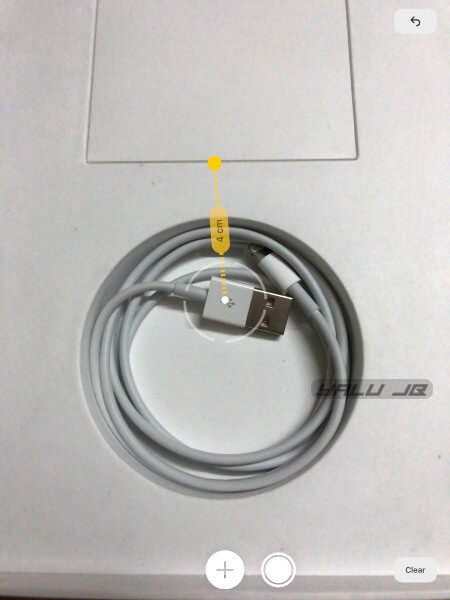


Step 3 Now move your device over to the desired point. Though the default unit is centimeter, you can easily get the value in inches in the “Length” section.


Step 4 Once the measurements are done, you can then copy the values and paste them in apps like Notes. To save the current snapshot to your camera roll, simply tap the circular white button once. This will allow you to save them for future reference.


DELETING MEASUREMENTS


To clear measurements in a one-by-one manner, simply tap the “arrow” button given at the top of the app. Alternatively, you can tap “Clear” to reverse all values and start from scratch.
CALCULATING AREA


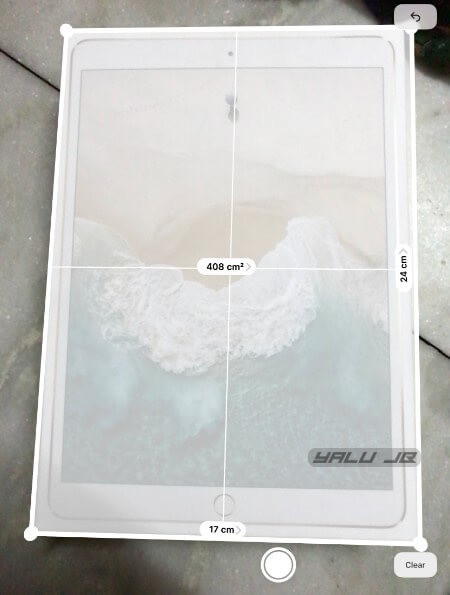
Step 1 Point your camera to a rectangular shape.


Step 2 Wait for the app to automatically measure its length and breadth.


Step 3 Tap anywhere on the object on your screen to calculate its area. My iPad case shown below has an area of 408 cm² while its length and breadth are 24 cm and 17 cm.


ACCESSING THE LEVEL TOOL


Earlier, the “Level” tool was a part of the stock Compass app. However, Apple axed this feature from the Compass app and added it to the Measure app.


It ensures that your iPhone is placed correctly vertically or horizontally and possesses the required orientation to get accurate measurements.


Surprisingly, this tool is missing from the iPad and it seems like only iPhone users can use it.


Step 1 Tap Level.


Step 2 Adjust your iPhone until it hits 0° or the required angle with respect to the horizontal or vertical.
WRAPPING UP


Since this firmware is still in beta stage, this app comes with a few caveats.


For example, my iPad got very hot while using this app. This was confirmed by some users who also experienced overheating while taking measurements.


Apart from overheating, the results can be slightly inaccurate so I suggest using it only for approximations for the time being.


Hopefully, Apple will weed these issues out in the public build that is due to be released this fall.

Saturday, 16 June 2018

Manually Uninstall iTunes and Related Software on Windows 7


Manually Uninstall iTunes and Related Software on Windows 7

Please keep in mind that, follow the steps below carefully. If you do it in incorrect order, unintended expects may occur.
Step 1. Go to “Control Panel” on your Windows 7. You can get to this by clicking the Windows key and choose Control Panel there.
Uninstall iTunes
Step 2. Choose “Uninstall a Program” under "Programs" there.
Uninstall iTunes
Step 3. Type “apple” in the search bar and enter. This will filter only Apple related software to display.
apple
Step 4. Right click on each program and choose “Uninstall” option. Then confirm to let it start. You should follow the order below to uninstall all the Apple related software.Sponsor Ads:
Gihosoft iPhone Data Recovery is a professional iPhone Data Recovery software to get back all your lost text message, photo, video, call history, note, contact and more from iPhone/iPad/iPod Touch. It offers a full solution to recover your lost data in different tough situations. Besides recovering data directly from iPhone, iPad and iPod touch, it also allows you to recover data from iCloud and iTunes backup files.

  • iTunes
  • Apple Software Update
  • Apple Mobile Device Support
  • Bonjour
  • Apple Application Support 32-bit
  • Apple Application Support 64-bit

3 Verify iTunes and Its Components Are Completely Uninstalled

This part is necessary only when you manually uninstall iTunes from Windows 7. If you use iMyFone TunesFix for uninstall, no need to verify it.
To verify if iTunes has been properly uninstalled and no traces remain, open up an explorer window. Click on “Computer” and using the directories below, make sure that the following folders have been deleted.

Directories on Windows 32-bit:

  • C:\Windows\System32\QuickTime
  • C:\Windows\System32\QuickTimeVR
  • C:\Program Files\Bonjour
  • C:\Program Files\Common Files\Apple\
  • C:\Program Files\iTunes\
  • C:\Program Files\iPod\
  • C:\Program Files\QuickTime\

Directories on Windows 64-bit:

  • C:\Windows\SysWOW64\QuickTime
  • C:\Windows\SysWOW64\QuickTimeVR
  • C:\Program Files (x86)\Bonjour
  • C:\Program Files (x86)\Common Files\Apple\
  • C:\Program Files (x86)\iTunes\
  • C:\Program Files (x86)\iPod\
  • C:\Program Files (x86)\QuickTime\

How to Speed up Safari on My iPad, iPhone, or iPod touch?


How to Speed up Safari on My iPad, iPhone, or iPod touch?
1. Clear the History


Too much history can clutter your Safari browser. Doing something as simple as clearing this history can have a significant boost on the browser speed. Clearing your browser history is not complicated at all. All you have to do is visit your Settings, select Safari, click on Clear History and Website Data and then confirm that you want to clear history and data in the pop-up that shows up.


2. Disable JavaScript


Your Safari may have a lagging issue simply because JavaScript is enabled. To disable JavaScript in Safari, you need to visit your Settings and tap on Safari. Scroll down to the very bottom and click on Advanced. Finally, Toggle the JavaScript off. Note that there is a downside to disabling JavaScript. The downside is that some of the advanced features that need JavaScript on websites to function may not work.


3. If the Background App Refresh is Enabled, Disable it


This tip will not only have the benefit of ensuring that your Safari is not slow but it will also help you save plenty of battery. To disable the Background App Refresh, visit your Settings, tap on General, and then on Background App Refresh. Finally, toggle the Background App Refresh off.


4. Disable Automatic Downloads


Another reason as to why Safari is so slow on your iOS hand-held device may be because Automatic Downloads is enabled. To fix this, you have to disable these downloads. To do this, you need to visit the device Settings, tap on iTunes and App Stores. Simply toggle off the switches under the Automatic Downloads.Sponsor Ads:


Gihosoft iPhone Data Recovery is a professional iPhone Data Recovery software to get back all your lost text message, photo, video, call history, note, contact and more from iPhone/iPad/iPod Touch. It offers a full solution to recover your lost data in different tough situations. Besides recovering data directly from iPhone, iPad and iPod touch, it also allows you to recover data from iCloud and iTunes backup files.


5. Reset the Network Settings


Although resetting your device network settings will force you to reconnect to your Wi-Fi networks, it can help you eliminate the lagging issue in your Safari. To do this, visit your Settings and then tap on General. Scroll down to locate the Reset option. Tap on it and then select Reset Network Settings.


How to Make Safari Faster on Your MacBook Pro/Air?
1. Clear the Cache and Cookies


Safari will store information about the websites you have visited. This is supposed to make things faster. However, after some time, the stored information can contribute to your Safari becoming slow. A perfect way to eliminate this browser-lag is to clear the cache and Cookies.


To clear your cache, click on Safari on the menu bar and select Preferences from the drop-down menu that appears. Select the Develop tab and then tick on the Show Develop Menu. A Develop option will appear on the top menu. Click on it. A drop-down menu will appear. Select Empty Caches from it.


Now that you have cleared your caches, the next step is to show you how to clear cookies on safari. To do this, click on Safari and then select Preferences. Click on Privacy. Click on Manage Website Data. Then select one or more websites. Finally go ahead and click Remove or Remove All.


2. Update the Extensions


Safari will allow you to add functionality to it using plug-in programs. Examples include ad-blockers, password managers, and privacy protection. Keeping your extensions up to date will eliminate lagging. To do this, click on Safari and then select Preferences. Then, click on the Extensions tab. You will see all the extensions installed in the column on your left-hand. You will see a notification if any updates are available. Update all the extensions that need updating.


iPhone Keeps Switching to Silent, How to Fix It 2019 Guide


iPhone Keeps Switching to Silent, How to Fix It 2019 Guide


1. Adjust Your Sound Settings on iPhone


Head into your Settings app and then select 'Sounds'. Once you're in there, you need to locate the 'Ringer and Alerts' section. If the 'Change with Buttons' tab is showing as green, you can turn it off, which will stop the ringer function from interfering.


2. Use Do Not Disturb Function


Bizarrely, you can even restart your iPhone by activating one of the in-built functions – Bold Text. If you go into your settings app, hit 'General', then 'Accessibility', and then turn the 'Bold text' feature on. As soon as you slide the toggle, you'll receive a popup that states it will restart your iPhone – just tap 'Continue' and your phone will restart.Sponsor Ads:


Gihosoft iPhone Data Recovery is a professional iPhone Data Recovery software to get back all your lost text message, photo, video, call history, note, contact and more from iPhone/iPad/iPod Touch. It offers a full solution to recover your lost data in different tough situations. Besides recovering data directly from iPhone, iPad and iPod touch, it also allows you to recover data from iCloud and iTunes backup files.


3. Update iOS to Latest, If It's Not


Every time Apple brings out an iOS update, they fill it with a vast array of fixes for common bugs that they've received complaints about. So, you may find that just updating to the latest version of iOS will do the trick to solve iPhone keeps switching to silent. If you're not aware of the best way to update your device, click here.


If you lost videos from iOS Camerall Roll which are nowhere to download again, you can use Gihosoft iPhone Data Recovery to get back deleted videos from iOS device including iPhone, iPad and iPod Touch.

How to change the screen notification settings Lock on iPhone and iPad on iOS 12

How to change the screen notification settings Lock on iPhone and iPad on iOS 12


# 1. Call Notification Center on your iOS device.


Step # 2. Now, Swipe to the left on an alert and press "Manage".


Gihosoft iPhone Data Recovery is a professional iPhone Data Recovery software to get back all your lost text message, photo, video, call history, note, contact and more from iPhone/iPad/iPod Touch. It offers a full solution to recover your lost data in different tough situations. Besides recovering data directly from iPhone, iPad and iPod touch, it also allows you to recover data from iCloud and iTunes backup files.


Alternatively, you can press and hold an alert → press ellipses (•••)


Step # 3. Then a menu will appear on the screen.


Now you have two options:


Deliver quietly: It will pass the alerts from the lock screen and directly go to the notification center. In addition, you will not hear any sound or vibration. But the badge of the application will continue to display


Disable: It allows you to completely disable the notifications of the application.


Hint: Anytime you want the alert to arrive on LS in its own right, go to the notification of the application and slide your finger on it. Then tap "Manage" and select "Deliver Prominently".
If you lost videos from iOS Camerall Roll which are nowhere to download again, you can use Gihosoft iPhone Data Recovery to get back deleted videos from iOS device including iPhone, iPad and iPod Touch.

How to Use Siri Handsfree on iPhone 2019

Tip 1 What Is Hey Siri Function on iPhone With Hey Siri features on, you can use Siri without pressing the Home button. If you have an iOS d...